How to turn on Developer Mode on iPhone (and why it's not showing)
Also in: Español · Français · Português · 中文 · 日本語 · 한국어 · العربية · Bahasa Indonesia · Tiếng Việt · Türkçe · हिन्दी · Русский · Italiano
You opened Settings looking for Developer Mode on your iPhone and it's nowhere to be found. That's normal: Apple hides it until it's needed. Here's how to turn on Developer Mode, why it's not showing, what happens when you switch it on and how to turn it off later.
What it is, in plain English
It's a switch Apple puts on the iPhone for people who build apps: with it on, the phone lets a program on a computer run tests on it. One of those tests is moving the GPS. That's why programs that change your iPhone location, like GPS Libre, ask you to turn it on.
It doesn't erase anything, doesn't change your apps, and it turns off with the same switch.
Why Developer Mode is not showing in Settings
Apple says so on its help page for developers: the option only appears in Settings once the iPhone is connected to a computer that asks for it. Until then, no matter how hard you look, it won't be there.
With GPS Libre it goes like this: plug the iPhone into the PC with the cable, unlock it, tap "Trust" and enter your passcode. The program asks the iPhone to show the option, and now it appears.
How to turn on Developer Mode: step by step
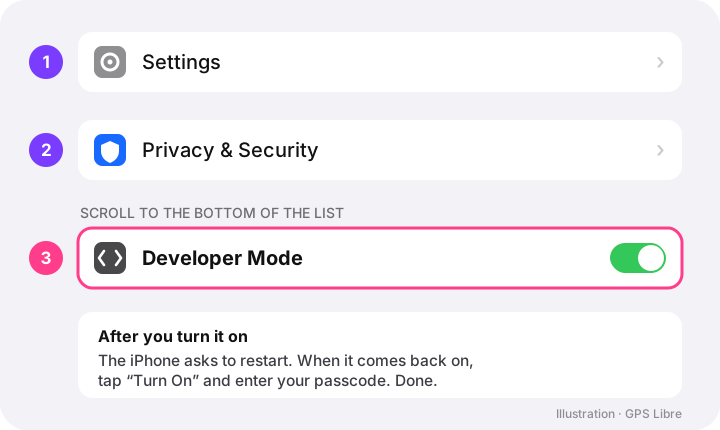
- 1. On the iPhone, open Settings → Privacy & Security.
- 2. Scroll almost to the bottom, to the Security section, and tap Developer Mode.
- 3. Flip the switch on. An alert pops up: tap "Restart". The iPhone turns off and back on by itself, no worries.
- 4. When it's back, unlock it. It asks once more if you want to turn the mode on: tap "Turn On" and enter your passcode.
Done. You do it only once: unless you turn it off, it stays on even when you restart the phone.
Is it dangerous?
We'll tell you what Apple tells you: when you turn it on, an alert warns that the mode lowers some of the phone's protections, because it lets developer tests run. Day to day you won't notice a thing: your apps, your photos and your chats stay the same.
Two friendly tips: only install apps from the App Store, as always, and if you're done changing your location, turn it off.
How to turn off Developer Mode
Same path: Settings → Privacy & Security → Developer Mode, flip the switch off and restart the iPhone. Heads up: with the mode off, GPS Libre can no longer move the GPS. If you want to use it again someday, just turn it back on like the first time.
If something doesn't work
- The option doesn't appear: plug the iPhone in with the cable, unlock it and trust the computer. Then open GPS Libre and hit "Connect iPhone".
- You tapped "Don't Trust": unplug the cable and plug it back in so it asks again.
- The iPhone restarted and nothing happened: unlock it; the "Turn On" alert shows up as soon as you're in.
Questions we always get
- Will I lose anything? No. It's a switch built into the iPhone: your photos, chats and apps stay as they are, and you can turn it off whenever you want.
- Do I have to hack the phone? No. Developer Mode is Apple's own and comes with the iPhone. GPS Libre needs iOS 17 or newer.
- Do I have to turn it on every time? No. Once and it stays.
- Do I need a Mac? No. A Windows PC is enough. Here's the step by step on Windows.
- What next? Now you can move your iPhone wherever you want. See what GPS Libre gives you for free.
If you want to try it, download GPS Libre and make your two free changes.