Change your iPhone location without a computer: what actually works (2026)
You're at home and you want your phone to say you're in another neighborhood. Yes, you can change your iPhone's location, and you run almost all of it from the phone itself. The one catch: you need a computer to get started, one time only. Here's how, step by step and in plain words.
What actually works: four steps
It's like Bluetooth headphones: the first time you have to pair them, and from then on they connect by themselves. GPS Libre works the same way.
- 1. Install the program on a Windows computer. Like any other program.
- 2. Plug the iPhone in with the cable, one time only. The phone asks whether you trust that computer: say yes.
- 3. Turn on “Developer Mode”. It's a switch the iPhone already has, and it has to be on before the phone lets you change the location. It's in Settings → Privacy & Security → Developer Mode, at the bottom of the list (it shows up after you connect the iPhone to the program, which also walks you through it). The iPhone restarts, and when it comes back you tap “Turn On”. You do it once and it doesn't harm the phone.
- 4. Put the cable away and run it from the phone. From then on it works over your home Wi‑Fi. Open the camera, point it at a code on the computer screen, type the PIN it shows you, and the map is on your iPhone. Tap a spot and that's where you appear.
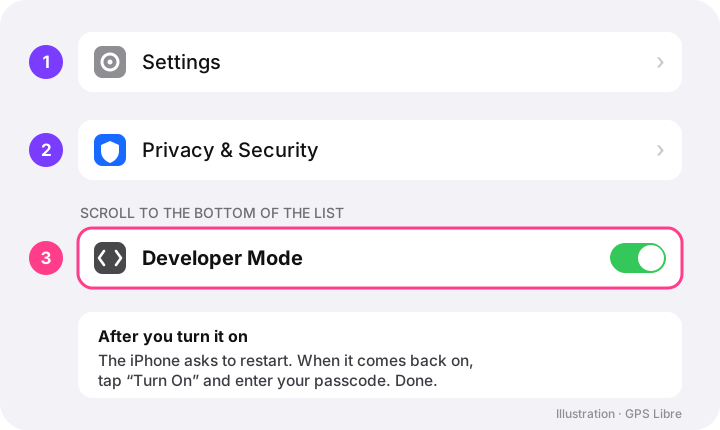
An example
You live in Queens and leave the computer on in your room. From the couch, on your phone, you tap Hell's Kitchen on the map. You open your app and now it shows you the guys in Hell's Kitchen. And you show up for them too: 0 feet away, 300 feet away… and they have no idea you're on your couch in Queens.
When you want to go back, tap “Restore the iPhone's real GPS” and you're home again.
Is it free?
You can try it free, with no account and no card. You get two location changes, enough to see that it really works with your iPhone. If you want to use it as much as you like, that's the paid part; prices are on the home page.
What doesn't work (so you don't waste money)
- VPNs (the apps for “changing country”): they change your internet, not the blue dot on the map.
- “Fake GPS” apps from the App Store: Apple doesn't let an app change the phone's location.
- Jailbreaking (hacking your own iPhone): it strips out security and you can break the phone. You don't need it.
Questions we always get
- So I do need a computer? Yes, but you don't touch it: it stays on and you do everything from your phone. With the iPhone alone there is no way.
- Will it work on my iPhone? If it's fairly recent, yes: iOS 17 or later (check in Settings → General → About). We tested it on an iPhone 13.
- What if I get “stuck” somewhere else? You won't. Tap “Restore the iPhone's real GPS” or close the program, and the iPhone goes back to its real location.
- Can an app block me? Some apps don't allow changed locations. Check each one's rules: using them properly is on you.
- What about Android? That's easier: Android does let you do it with just the phone.
If you want to see it working, download GPS Libre and use your two free changes.